
Windows 10 End of Support: Farewell to an Era! How to Upgrade to Windows 11 or Alternatives for Older PCs
October 13, 2025 is the last day before Windows 10 officially ends support. Tomorrow, October 14, 2025, Microsoft will stop releasing free security updates for this OS, marking the end of an era that has lasted over 10 years. Windows 10 was more than just an operating system – it was a bridge between classic Windows and the modern world, combining a familiar interface with innovation. It seems like yesterday we were installing it on new PCs, and today we are saying goodbye to an icon that changed the way we think about computers. Let's remember why this system was so great, and discuss how to properly upgrade to Windows 11 or alternatives to get a pleasant experience even on an old or weak PC.
Farewell, Era: Why Windows 10 Was Such a Good System
Windows 10, released on July 29, 2015, replaced the troubled Windows 8, which disappointed many users with its focus on touch devices. Microsoft went back to its roots, restoring the classic Start menu, but with a modern design - it was like meeting an old friend who had been updated. The system combined the best of Windows 7 and added innovations, making it universal for PCs, tablets and even Xbox.
One of the key advantages was stability and security. Windows 10 introduced Windows Hello for biometric login (face, fingerprint), BitLocker for disk encryption and Windows Defender, which became a powerful antivirus. It supported billions of devices, from powerful gaming PCs to budget laptops, and was optimized for multitasking. Continuum allowed you to switch between desktop and tablet modes, and Cortana, a voice assistant, made everyday tasks easier (although it evolved into Copilot over time).
The Windows 10 era was a time when the OS became a “service”: regular updates (like the Anniversary Update 2016 or the Creators Update 2017) added features like Timeline to sync work history across devices, Night Light to reduce blue light, and improved integration with Microsoft 365. It was friendly to gamers with DirectX 12 and the Xbox app, and to professionals with virtual desktops and Task View. Windows 10 survived the pandemic, becoming the basis for remote work, and gathered billions of users, as it was a free upgrade from Windows 7/8.
But time passes. With over 1 billion devices on Windows 10, many feel nostalgic: it was an OS that “just worked”, without unnecessary complications. End of support is like closing a favorite book, but it's a chance for new stories.
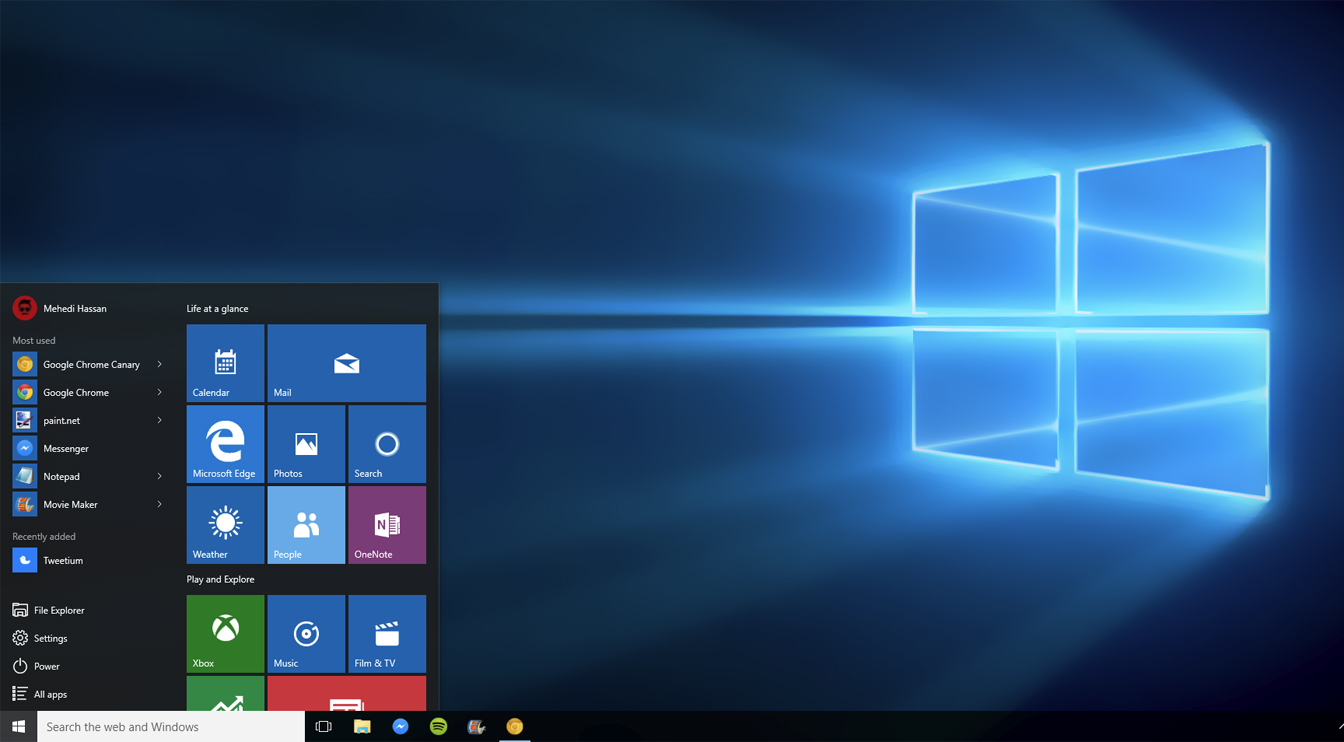
extremetech.com
Windows 10's classic desktop is a symbol of stability and convenience that has accompanied us for over 10 years (source: Microsoft)
What happens after Windows 10 support ends
Starting October 14, 2025, Microsoft will stop releasing free security updates for Windows 10. This means that your system will no longer receive patches for vulnerabilities, which makes it vulnerable to cyberattacks, viruses, and malware. The functionality will remain, but the risks will increase - hackers can exploit unpatched holes, as was the case with Windows 7 after its EOS in 2020.
However, there are options for continuation:
• Extended Security Updates (ESU): Microsoft offers paid security updates. For consumers - until October 2026 (about $30 per year), for businesses - until 2028 (prices are higher, from $61 per year). This is a temporary solution for those who are not ready to migrate.
• Risks of not updating: Without ESU, your PC could become a target for malware, and compatibility with new programs will decrease. We recommend upgrading to a new OS to avoid problems.
If your PC meets the requirements for Windows 11, upgrading is a logical step. If not, alternatives like Linux will provide security and performance on weak hardware.
How to properly upgrade to Windows 11
Windows 11, released in 2021, is a successor with a modern interface, improved performance and a focus on AI (such as Copilot). But not all PCs are compatible.
Windows 11 system requirements:
• Processor: 1 GHz, 2+ cores, compatible (Intel 8th Gen+, AMD Ryzen 2000+, Qualcomm Snapdragon 850+).
• RAM: 4 GB (8 GB+ recommended for comfortable operation).
• Storage: 64 GB+.
• TPM 2.0: Enabled in BIOS.
• Secure Boot: Enabled.
• Graphics: DirectX 12 with WDDM 2.0.
Transition process:
1. Check compatibility: Use Microsoft's PC Health Check tool (download from Microsoft). If your PC doesn't respond (e.g., old CPU), consider alternatives.
2. Backup: Save files to OneDrive or an external drive.
3. Update: If compatible, go to Settings > Update & Security > Windows Update. If not, clean install from ISO (download from microsoft.com).
4. For weak PCs: If hardware compatible but slow, turn off animations (Settings > System > About > Advanced system settings) and use lightweight applications. Expect better performance through optimization.
Windows 11 offers a nice experience: a centered Start menu, Snap Layouts for multitasking, and better integration with Android devices. It can be demanding for weak PCs, so if your computer is not up to the task, look at alternatives.
Windows 11 alternatives for old or weak PCs
If your PC does not meet the requirements for Windows 11 (for example, an old processor without TPM 2.0), Linux is a perfect alternative. It is a free OS, lightweight, secure (regular updates) and compatible with old hardware. In 2025, Linux distributions have evolved, offering Windows-like interfaces for an easy transition. Here are the best options for weak PCs (2–4 GB RAM, old CPU):
1. Linux Mint (XFCE edition): A lightweight Ubuntu-based distribution, with a Cinnamon or XFCE interface for weak hardware. XFCE uses <1 GB RAM, is fast and stable. Pros: Familiar interface, built-in tools (Timeshift for backups), driver support. Installation: Download ISO from linuxmint.com, create bootable USB (Rufus), boot from BIOS and install. Pleasant experience: Minimalism, fast startup, no viruses.
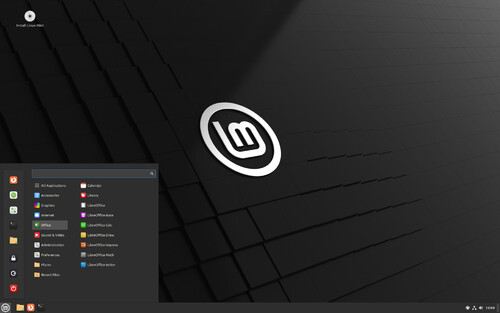
linuxmint.com
Linux Mint XFCE interface is light and familiar for Windows users (source: Linux Mint)
2. Zorin OS: Windows-like interface (Zorin Appearance for customization). Easy for older PCs, with Wine to run Windows programs. Pros: Easy for beginners, built-in themes (Windows-like). Installation: zorin.com, bootable USB, dual boot with Windows 10 for testing. Pleasant experience: Modern design, low CPU/RAM load.
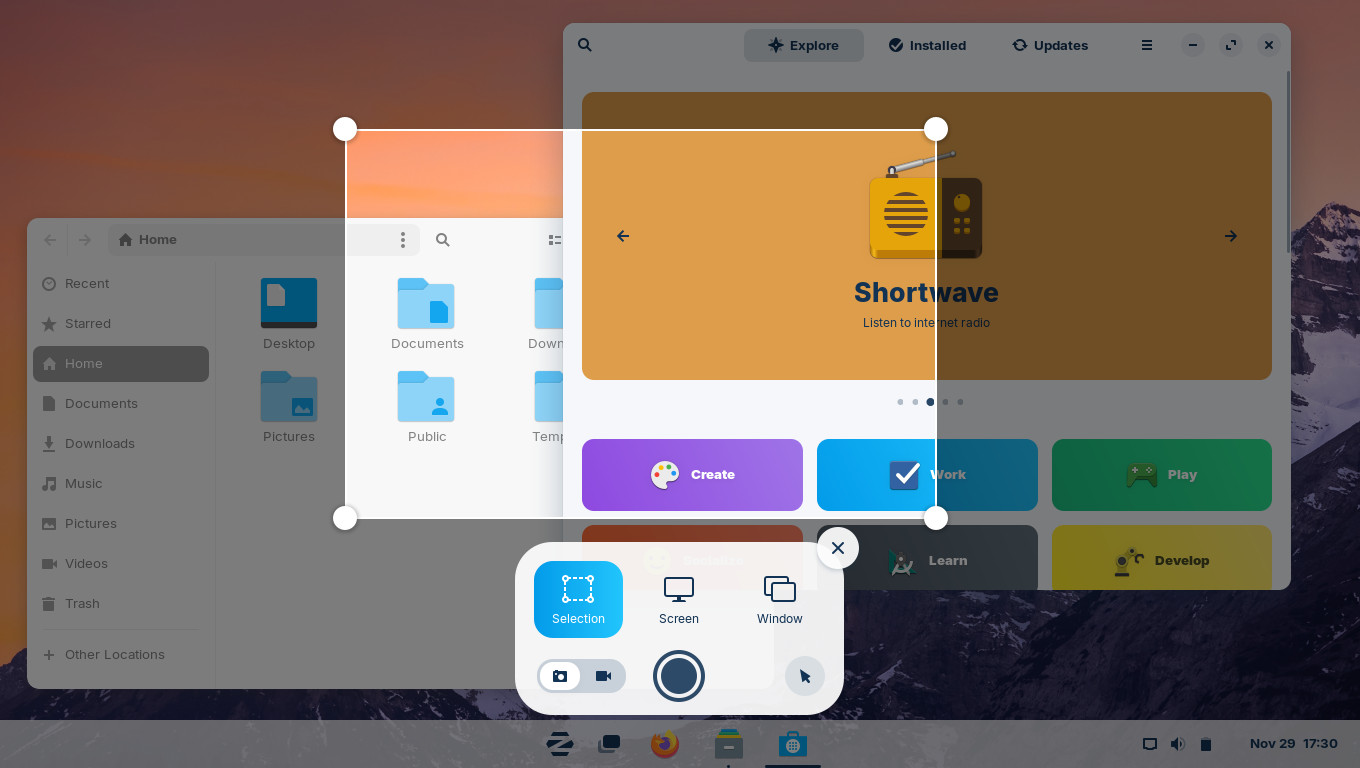
help.zorin.com
Zorin OS interface – easy to migrate from Windows to low-end PCs (source: Zorin Help)
3. Linux Lite: Ultra-lightweight Ubuntu-based distro for PCs with 1GB of RAM. Pros: Minimalistic, with Lite Tweaks for optimization. Installation: linuxliteos.com, simple installer. Pleasant experience: Fast, built-in cleaning tools.
4. MX Linux: Stable, lightweight (XFCE), with MX Tools for customization. Pros: Doesn’t require a powerful PC, good compatibility. Installation: mxlinux.org.
5. Peppermint OS: Ubuntu/Debian hybrid, lightweight for browsing and office tasks. Pros: Web application integration, low resource consumption.
Linux migration process:
1. Check compatibility: Download a live-USB distro, boot from it (without installation) and check your hardware (Wi-Fi, sound).
2. Backup: Transfer files from Windows 10 to an external drive.
3. Installation: Create a bootable USB (Rufus), boot from BIOS (F2/Del), select "Install". Add Windows-like themes (for example, in Zorin).
4. Tips for a pleasant experience: Install Wine for Windows applications, Chrome/Firefox for browsing. For weak PCs, use XFCE or LXDE. Update the system regularly for security.
Linux will provide a pleasant experience on an old PC: free, without ads, with customization. In 2025, distributions like Mint or Zorin make the transition easy, without loss of performance.
Conclusion: The end of Windows 10 is the beginning of a new era
Windows 10 was an era of stability, innovation and convenience that accompanied us since 2015. Its end on October 14, 2025 is a sad but necessary step. If your PC is powerful, upgrade to Windows 11 for modern features. For weak devices, Linux (Mint XFCE, Zorin OS) will provide security, speed, and a pleasant experience. At LuckyPC you will find laptops from 6,500 UAH for any OS. Goodbye, Windows 10 – thank you for everything!


